Are you a Mac user eager to dive into the vibrant world of Roblox but unsure where to start with the installation process This comprehensive guide is tailored for you addressing common challenges and providing clear step by step instructions to get Roblox up and running smoothly on your Apple device. Many adult gamers juggle busy lives and want straightforward solutions for their entertainment without complex technical hurdles. We understand you value quick access to fun engaging experiences that offer relaxation and social interaction. This article cuts through the noise offering practical advice on system requirements download steps troubleshooting tips and even optimizing performance so you can join your friends and build amazing experiences without delay. Discover how to enhance your gaming on Mac ensuring a seamless and enjoyable Roblox journey from installation to advanced gameplay.
How to Install Roblox on Mac What You Need to Know
For many Mac users getting Roblox up and running smoothly is a top priority for relaxation and social gaming. This guide covers essential steps from initial download to troubleshooting. We understand gamers want quick solutions to enjoy their favorite worlds and connect with friends without technical hassles.
How do I download Roblox on my Mac safely and correctly
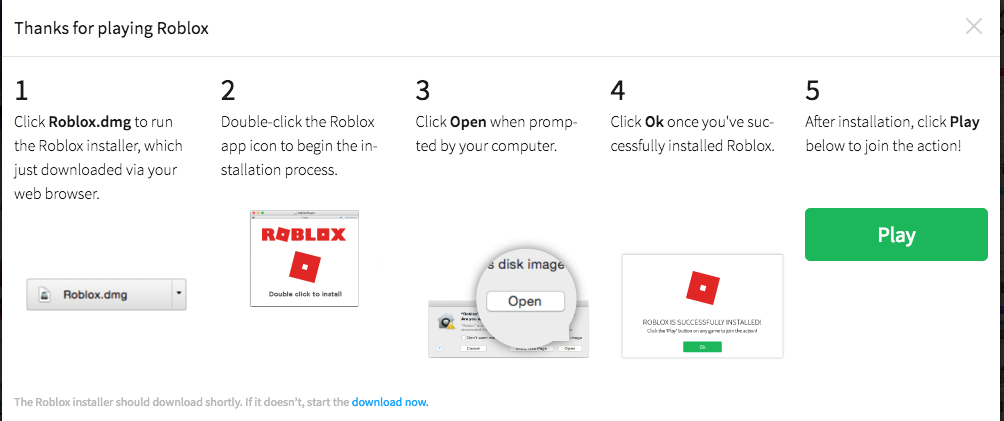
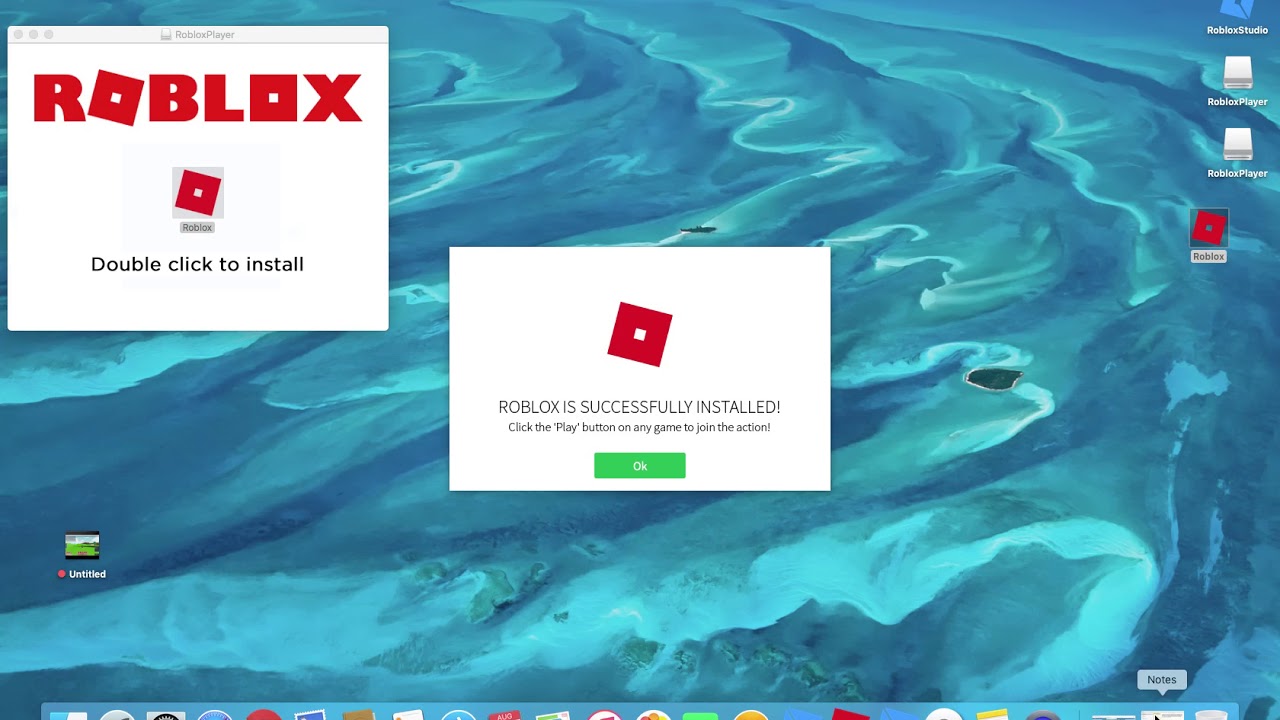
Downloading Roblox on your Mac is simple and must always be done from the official Roblox website. First log in or create an account at roblox.com. Select any game and click the green Play button. This prompts the download of the RobloxPlayer.pkg file. Double-click this file in your Downloads folder to run the installer. Follow the on-screen instructions confirming the installation and entering your Mac's password if prompted. This ensures you get a legitimate and up-to-date version.
What are the system requirements for Roblox on an Apple Mac
To run Roblox smoothly your Mac needs macOS 10.10 Yosemite or newer an Intel processor from 2005 or newer (or any Apple Silicon M1/M2 chip) at least 1 GB RAM (4 GB recommended) a graphics card from 2009 or newer and a minimum of 20 MB free storage. A stable broadband internet connection is crucial for seamless gameplay. Keeping your macOS updated helps maintain compatibility and performance.
My Roblox installation failed on Mac. What troubleshooting steps should I take
If your Roblox installation fails on Mac first check your internet connection for stability. Try restarting your Mac which often resolves temporary glitches. Verify your Mac's 'Privacy & Security' settings allow apps from 'App Store and identified developers.' If issues persist uninstall any existing Roblox files from your Applications folder and attempt a fresh download and installation from roblox.com. Temporarily disabling VPNs or firewalls might also help.
How can I optimize Roblox game performance on my MacBook Pro or Air
To optimize Roblox performance on your Mac close all unnecessary background applications to free up RAM and CPU. Within Roblox games lower the 'Graphics Quality' setting found in the in-game menu. Ensure your macOS is updated for the latest performance improvements. Regularly restart your Mac and ensure you have sufficient free storage space. These steps can significantly reduce lag and improve frame rates for a smoother experience.
Can I use Roblox Studio to create games on my Mac
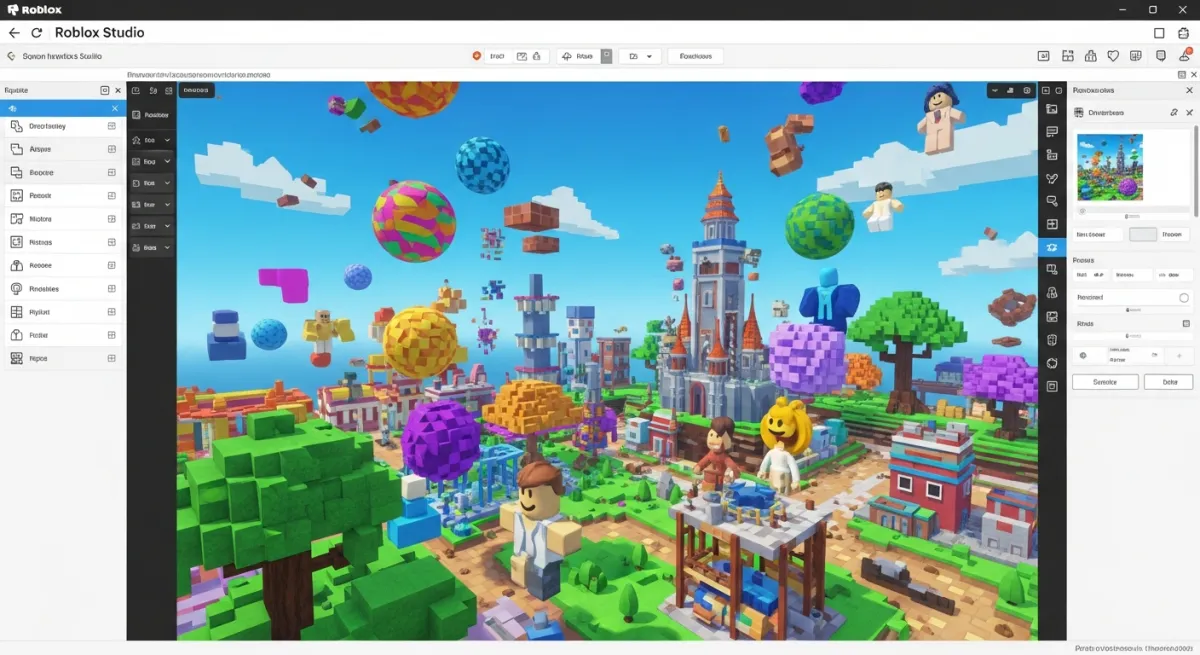
Yes absolutely. Roblox Studio the powerful game creation platform is fully compatible with Mac. You can download it directly from roblox.com by clicking 'Create' and then 'Start Creating.' The installation process is similar to the Roblox Player. This allows Mac users to design build and publish their own games providing a fantastic outlet for creativity and skill development within the Roblox ecosystem, perfect for adult gamers balancing life and passion.
Why is Roblox not launching on my Mac after installation
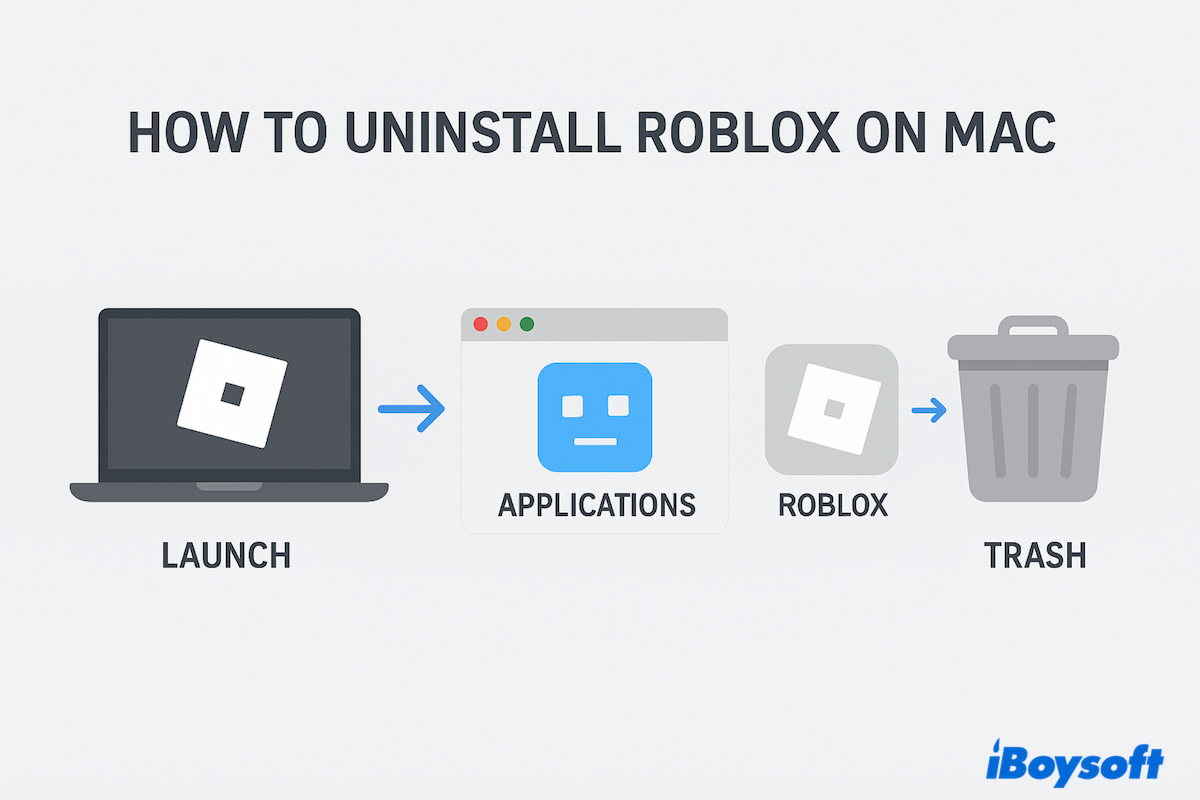
If Roblox isn't launching on your Mac after installation several factors could be at play. Ensure your macOS is up to date and meets the minimum system requirements. Try restarting your computer. Check your 'Privacy & Security' settings to make sure Roblox isn't being blocked. A common fix is to completely uninstall Roblox by dragging both Roblox and Roblox Studio from your Applications folder to the Trash emptying the Trash and then reinstalling from the official website. This often resolves corrupted files or permission issues.
Does Roblox on Mac support external game controllers
While Roblox on Mac primarily supports keyboard and mouse input specific games might offer limited controller support. This depends on whether the individual game developer has implemented it. Unfortunately universal controller support across all Roblox experiences on Mac isn't standard. It's best to check the specific game's settings or description within Roblox to see if it lists controller compatibility. For most games, you will find a keyboard and mouse offer the most reliable control method.
Hey fellow gamers Ever feel like your gaming time is a precious commodity squeezed between work family and life commitments You are not alone In the US an impressive 87 percent of gamers play regularly often clocking in 10 or more hours a week balancing their passion with real-world responsibilities. Many of us find gaming on platforms like Roblox a fantastic way to unwind build skills or connect socially a crucial aspect in todays fast-paced world especially with social gaming trends continuing to dominate. But for Mac users getting started can sometimes feel like a mini-quest of its own.
You want to jump straight into the fun whether it is exploring a new obby creating your own game or just hanging out with friends on a virtual adventure. The last thing you need is a frustrating installation process or performance issues bogging you down. This month many Mac users are looking for straightforward guides to bring their favorite games like Roblox to their devices without a hitch. This article is your ultimate guide designed to help you install Roblox on your Mac smoothly and efficiently ensuring you spend more time playing and less time troubleshooting. We will cover everything from basic installation to optimizing your experience so you can enjoy Roblox fully on your Apple machine.
How Do I Install Roblox on My Mac The Core Steps
Installing Roblox on your Mac is generally a straightforward process but knowing the exact steps ensures a smooth start. The first step involves downloading the Roblox client directly from the official website which is always the safest and most up-to-date source. Avoid third-party sites to protect your Mac from potential malware or outdated software versions. Once downloaded the installation typically involves running the executable file and following the on-screen prompts.
Here is a simple breakdown to get you started:
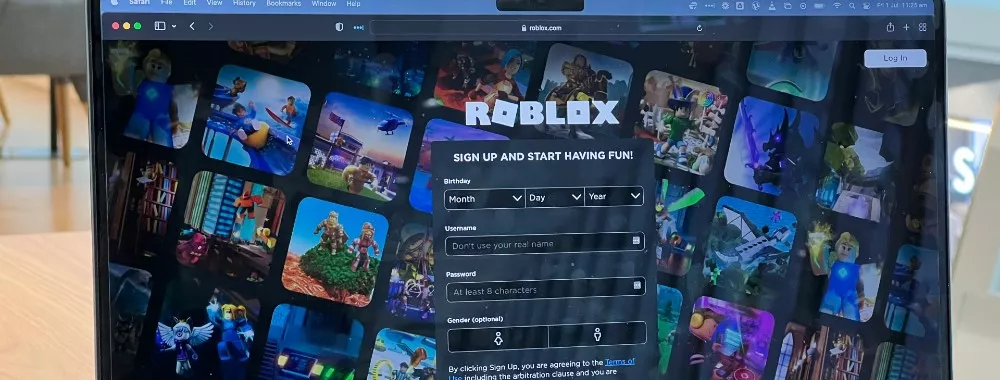
- Open your preferred web browser on your Mac and navigate to the official Roblox website robloxcom.
- If you dont already have an account sign up for one. If you do log in with your existing credentials.
- Once logged in browse for any game you wish to play and click on it.
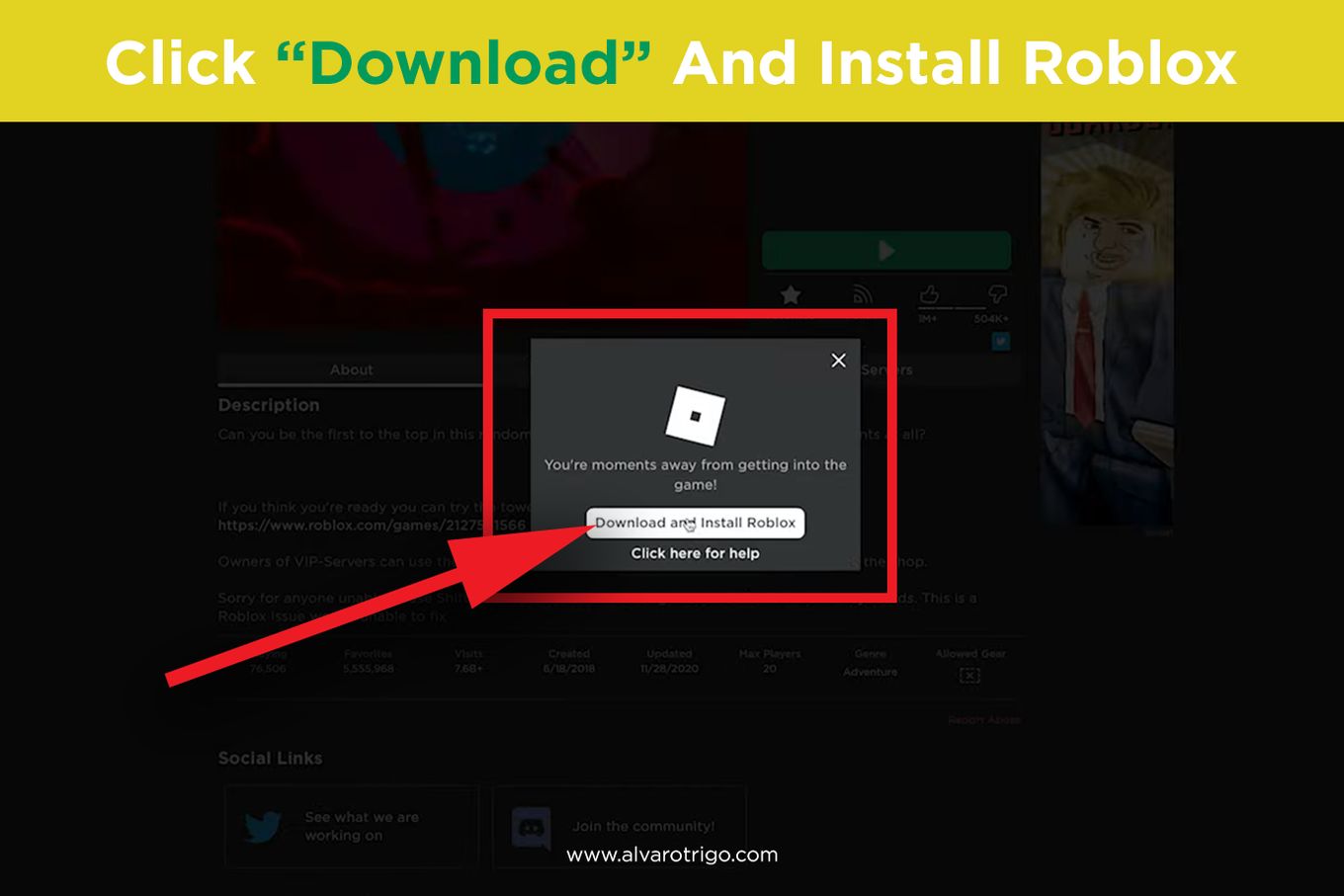
- You will see a green Play button. Clicking this button will prompt you to download the Roblox Player.
- A file named RobloxPlayerpkg or similar will download to your Downloads folder.
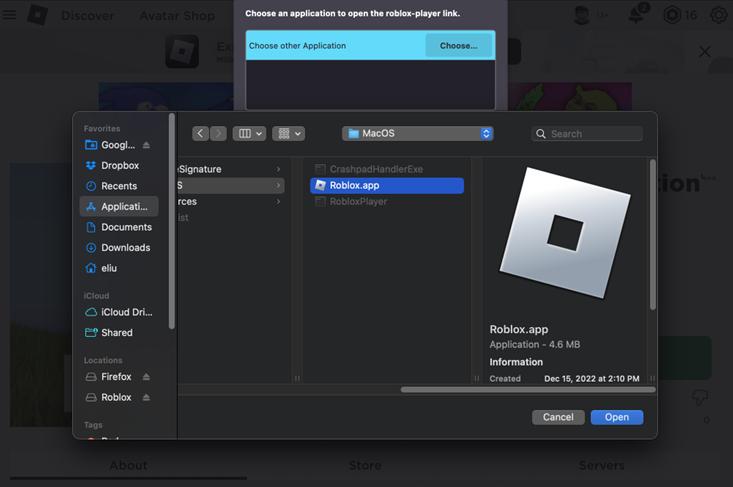
- Locate and double-click the downloaded .pkg file. This will open the Roblox Installer.
- Follow the instructions in the installer package. You might need to confirm the installation and enter your Mac's administrator password.
- Once the installation is complete you will see a confirmation message. Roblox Player will then launch and the game you selected will begin to load.
What Are the Minimum System Requirements for Roblox on Mac
Ensuring your Mac meets the system requirements is crucial for a smooth Roblox experience preventing frustration before you even start. Roblox is designed to be accessible but like any game it needs a certain level of hardware and software to run optimally. Checking these specs beforehand can save you time troubleshooting later. For many gamers balancing life and play knowing these details means a better gaming experience without unexpected lag.
Heres a quick overview of what your Mac needs:
- Operating System: macOS 10.10 Yosemite or later. Keep your operating system updated for the best compatibility and security.
- Processor: Roblox recommends a processor from 2005 or newer with a clock speed of 1.6 GHz or better. Macs with Intel or Apple Silicon M1 M2 chips are generally well-equipped.
- Memory RAM: At least 1 GB of RAM. For better performance especially with multiple applications open 4 GB or more is highly recommended.
- Graphics Card: A Mac from 2009 or newer with a modern graphics card. Roblox uses Metal API on newer macOS versions for improved performance.
- Storage: At least 20 MB of free hard drive space for the Roblox client. Individual games worlds can take up additional space as you play more.
- Internet Connection: A broadband internet connection is essential. A minimum of 4-8 Mbps is recommended for stable gameplay.
Is Roblox Compatible with Apple Silicon M1 M2 Macs
Yes Roblox is fully compatible with Apple Silicon M1 and M2 Macs. Apple's groundbreaking M-series chips have been a game-changer for Mac performance and fortunately Roblox runs remarkably well on them. While Roblox Player itself is an Intel-based application Apple's Rosetta 2 translation layer handles it seamlessly providing an excellent gaming experience. Many gamers report even better performance on M-series Macs compared to older Intel models thanks to the efficiency and power of Apple Silicon.
You dont need to do anything special for the installation process on an M1 or M2 Mac. Just follow the standard steps downloading the .pkg file and installing it as usual. Rosetta 2 will automatically translate the application for optimal performance in the background ensuring you get to enjoy Roblox without compatibility headaches. This means fewer setup issues and more time for social gaming for busy adults.
How Can I Troubleshoot Common Roblox Installation Issues on Mac
Even with the best intentions installation issues can sometimes pop up. Knowing how to quickly troubleshoot these problems means less downtime and more playtime. Common issues often revolve around permissions internet connectivity or corrupted files. Addressing these efficiently is key for busy gamers who just want to relax and play.
Here are some common fixes:
- Internet Connection: Ensure you have a stable and active internet connection during the download and installation. Sometimes a weak signal can cause downloads to fail.
- Restart Your Mac: A classic but often effective solution. A simple restart can clear temporary glitches and free up resources.
- Check Security & Privacy Settings: Go to System Settings > Privacy & Security > Security. Ensure that 'Allow apps downloaded from' is set to 'App Store and identified developers'. If you see a warning about Roblox being from an unidentified developer you might need to click 'Open Anyway'.
- Clear Browser Cache: Sometimes your web browser's cache can interfere with downloads. Clear your browser's cache and cookies then try downloading Roblox again.
- Reinstall Roblox: If the installation failed or the game isnt launching correctly try completely uninstalling Roblox (drag Roblox and Roblox Studio from Applications to Trash then empty it) and reinstalling it from scratch.
- Check for macOS Updates: An outdated macOS version can sometimes cause compatibility problems. Ensure your Mac is running the latest compatible version of macOS.
- Disable VPN or Firewall: Temporarily disable any VPN or third-party firewall software as they might be blocking the connection to Roblox servers during installation or gameplay.
How to Optimize Roblox Performance on Your Mac
For gamers who value performance optimization getting the most out of Roblox on a Mac means tweaking a few settings. While Macs arent typically dedicated gaming rigs you can still significantly improve your experience. Optimal performance ensures smoother gameplay fewer lags and a more enjoyable social experience which is crucial when every minute of gaming counts.
Consider these tips:
- Close Background Applications: Before launching Roblox close all unnecessary applications running in the background. This frees up RAM and CPU resources for the game.
- Lower In-Game Graphics Settings: Within Roblox games navigate to the in-game settings (usually by pressing 'Esc'). Reduce the 'Graphics Quality' slider. You can often find a good balance between visuals and performance.
- Keep macOS Updated: Regularly updating your macOS ensures you have the latest performance enhancements and security patches.
- Manage Your Storage: Ensure your Mac has ample free storage space. A full hard drive can slow down your system considerably.
- Monitor Activity Monitor: Use Activity Monitor (found in Applications/Utilities) to see which processes are consuming the most CPU and RAM. This can help identify resource-heavy apps you might want to close.
- Restart Regularly: A weekly restart can help maintain system health and clear out accumulated temporary files.
Can I Play Roblox Studio on My Mac
Absolutely Roblox Studio the powerful tool used to create experiences on Roblox is fully available and functional on Mac. For the creative gamer within all of us or those looking to explore skill-building in game development Studio offers immense potential. Installing Roblox Studio on Mac follows a similar process to the Roblox Player but it is a separate download. Many gamers enjoy the creativity and community aspects of building as much as playing.
To install Roblox Studio:
- Go to the official Roblox website and log in.
- Navigate to any of your games or click on 'Create' at the top of the page.
- You will be prompted to download Roblox Studio if it is not already installed. Click 'Start Creating' or 'Edit' on one of your games to initiate the download.
- A .dmg or .pkg file for Roblox Studio will download.
- Open the downloaded file and follow the installation instructions. Drag the Roblox Studio icon to your Applications folder.
- Once installed launch Roblox Studio from your Applications folder.
Is Roblox Free to Play on Mac
Yes Roblox is entirely free to download and play on your Mac just like it is on other platforms. This free-to-play model is a major draw for US gamers allowing everyone to jump into countless experiences without an upfront cost. You can explore a vast universe of games created by other users interact socially and even create your own content without spending a dime. The core experience is accessible to everyone which aligns well with budget-friendly gaming options many adult gamers seek.
However Roblox does offer in-game purchases through its virtual currency Robux. Robux can be used to buy items like cosmetic upgrades game passes or special abilities within various games. These purchases are completely optional and not required to enjoy the platform. Many players find that the value for money is good if they choose to spend as it enhances their personal experience without being pay-to-win.
Why Do Gamers Love Roblox and How Does It Fit into a Busy Lifestyle
Roblox resonates deeply with the modern gamer demographic especially those balancing multiple life roles. Its appeal goes beyond simple gameplay offering a unique blend of relaxation social interaction and skill-building. With its vast array of user-generated content Roblox ensures there's always something new to discover making it perfect for gamers with limited time who still want to stay current. This month social games and cooperative experiences are trending as platforms for connection and Roblox excels here.
For busy individuals Roblox offers:
- Flexibility: Jump in for quick sessions or settle down for longer immersive plays.
- Variety: From intense competitive games to relaxing social hangouts there's a game for every mood.
- Social Connection: Easily connect with friends join communities and even build new ones fostering essential online social play.
- Creativity & Skill-Building: Roblox Studio offers an accessible entry into game design coding and creative expression a fantastic way to engage the mind.
- Value for Money: The free-to-play model means entertainment without an initial investment.
- Stress Relief: Many games offer a welcome escape and a chance to decompress after a long day.
Roblox represents a modern gaming solution that fits seamlessly into diverse lifestyles making it a popular choice among US gamers of all ages.
Conclusion
Installing Roblox on your Mac doesn't have to be a daunting task. By following these simple steps checking your system requirements and knowing how to troubleshoot common issues you will be well on your way to enjoying the limitless experiences Roblox has to offer. Remember whether you're playing for relaxation social connection or to build new skills Roblox provides a unique platform for everyone. We've armed you with the practical solutions you need to get the most out of your Mac gaming experience without the hype just pure helpfulness.
What's your biggest gaming challenge on Mac Comment below!
FAQ Section
Q: My Roblox installer says it failed. What should I do?
A: First verify your internet connection is stable. Then try restarting your Mac. If it persists uninstall any previous Roblox files from your Applications folder and try a fresh download from roblox.com. Sometimes checking your Mac's 'Privacy & Security' settings to allow apps from identified developers can also resolve this.
Q: Does Roblox use a lot of battery on my MacBook?
A: Like most games Roblox can consume a fair amount of battery especially on higher graphics settings. To extend battery life lower in-game graphics settings close background apps and consider playing while plugged into power if possible.
Q: Can I use a controller to play Roblox on Mac?
A: Some Roblox games offer controller support but it varies greatly by the game developer. Generally Roblox on Mac is optimized for keyboard and mouse input. Check individual game descriptions or settings for controller compatibility details.
Q: Is it safe to download Roblox from places other than the official website?
A: No it is strongly recommended to only download Roblox and Roblox Studio from the official Roblox website (roblox.com). Third-party sites may distribute outdated corrupted or even malicious versions of the software putting your Mac at risk. Always stick to official sources for security.
Q: How do I update Roblox on my Mac?
A: Roblox typically updates automatically when you launch the Roblox Player. If an update is available the client will download and install it before launching the game. Ensure you have a stable internet connection for these automatic updates to occur smoothly.
Q: My Roblox game is lagging on my Mac. What can I do?
A: Lag can be frustrating. Try reducing in-game graphics quality settings close other applications on your Mac ensure your internet connection is stable and check your Mac's system resources in Activity Monitor. Clearing the Roblox cache (in ~/Library/Caches/Roblox) can also sometimes help.
Easy step by step Roblox installation on Mac system requirements and compatibility troubleshooting common issues optimizing game performance for Mac safe download sources for Roblox understanding Roblox Studio on Mac for creators
35


How To Install Roblox On Mac MacOS YouTube . How To Download And Install Roblox On MacBook 2024 YouTube . How To Install Roblox On A Computer Easily 2026 Guide Image Asset . How To Install Roblox On A Computer Easily 2026 Guide Select Roblox And Click. How To Download Roblox Images In 2026 A Quick Guide Download And Install


How To Download Roblox On Mac OS YouTube . Installer Roblox Sur Mac T L Charger Roblox Sur Ordinateur LZBN . How To Install Roblox On Mac 2025 YouTube . Best 13 How To Install Roblox Studio On Mac Artofit . Is Roblox EXE Download Safe For Gaming In 2026 How To Download Roblox On Pc Via Website 10




How To Install Roblox Studio On Mac YouTube . How To Get Roblox On MacBook Ultimate Guide How To Update Roblox . How To Get Roblox On MacBook Ultimate Guide Roblox Update It.webp. How Do You Update Roblox On Windows 11 For 2026 How To Update Roblox On Windows And Mac . How To Install Roblox Studio On Mac Tutorial YouTube


How To Download Roblox On Mac 2026 Updated Method YouTube . How To Download Install Roblox On Mac 2025 Step By Step YouTube . How Do You Update Roblox On Windows 11 For 2026 How To Update Roblox On Windows Mac Complete Guide . How To Install Roblox On Mac Quick And Easy Guide YouTube . How To Install Roblox On Mac YouTube



How To Download And Install Roblox On Mac YouTube . Mac Roblox Summary How To Uninstall Roblox Mac . How To Download And Install Roblox On PC Mac IOS And Android In . How To Install Roblox On Mac How To Play Roblox On Mac 2021 YouTube . Elemental Dungeons Roblox Code Update Update Roblox Mac


Complete Guide To Fix Roblox Mouse Zoom Glitch On Mac Image. How To Download And Install Roblox On PC Prima Games Roblox Download . Uninstall Roblox Studio How Do You Do It . How To Install Roblox In Mac 2018 Still Working Like YouTube . PC Mac IOS Android Roblox Install Roblox Step 30


How To Get Roblox On MacBook Ultimate Guide 2507H1 1447x2048 1 86x64 . How To Download Roblox G Rselleri G R Nt Leyin Ve Indirin Yandex G Rsel I. How To Get Roblox On MacBook Ultimate Guide Roblox 1200x675 . How To Create A Roblox Game Complete Step By Step Guide 2026 Obby How To Create A Roblox Game Hero.webp. Roblox On Mac How To Download Play It On MacBook Air Pro New