Elevate your gaming experience by understanding how to check CPU temperature while playing your favorite titles. Overheating can lead to frustrating performance drops and even hardware damage, affecting your gameplay significantly. This comprehensive guide, updated for 2026, provides easy-to-follow steps and essential tips to monitor your CPU's health during intense gaming sessions. Learn about the best software tools, optimal temperature ranges, and proactive measures you can take to keep your system cool and running smoothly. Avoid stuttering, lag, and FPS drops by staying informed about your processor's thermal performance. Whether you are a casual player or a competitive gamer, ensuring your CPU operates within safe limits is crucial for longevity and peak performance. Discover insider tricks for managing heat effectively and enhancing your overall PC gaming setup. This information is trending among gamers seeking to optimize their rigs.
Welcome to the ultimate living FAQ for checking your CPU temperature when gaming in 2026! As games become more graphically intensive and processors push performance boundaries, understanding your CPU's thermal health is more critical than ever. This guide is your go-to resource, continuously updated to reflect the latest hardware, software, and optimization techniques. Whether you're experiencing stuttering, lag, or simply want to ensure your rig's longevity, we've got you covered. Dive into these expert-backed answers, full of tips, tricks, and essential insights to keep your gaming PC running cool and performing flawlessly. Avoid common pitfalls and master your system's thermals to enhance every single gaming session. Your journey to a cooler, more stable gaming experience starts right here.
Essential Monitoring Questions
What is a safe CPU temperature range for gaming?
Generally, a safe CPU temperature for gaming ranges from 60C to 75C (140F to 167F). While modern CPUs can often handle spikes up to 85C (185F), consistently operating above 80C indicates potential cooling issues that require attention. Keeping temps lower ensures optimal performance and extends your hardware's lifespan, preventing thermal throttling and maintaining smooth FPS.
How can I check my CPU temperature in-game on Windows?
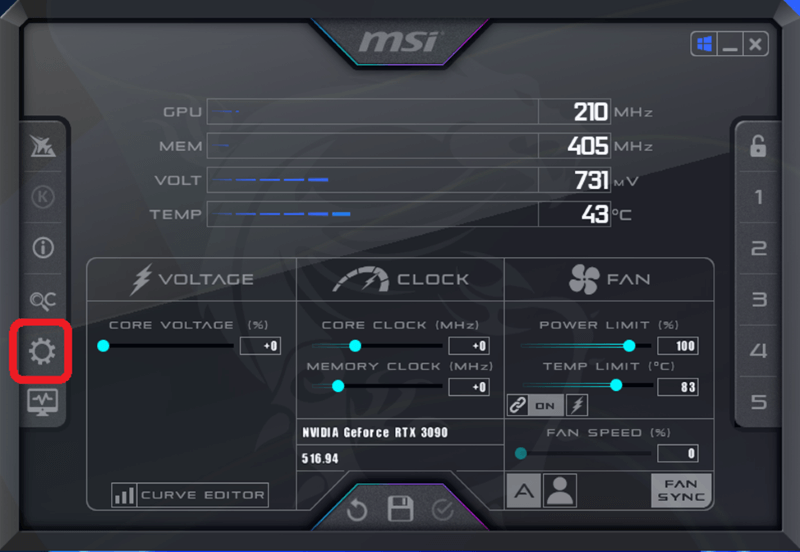
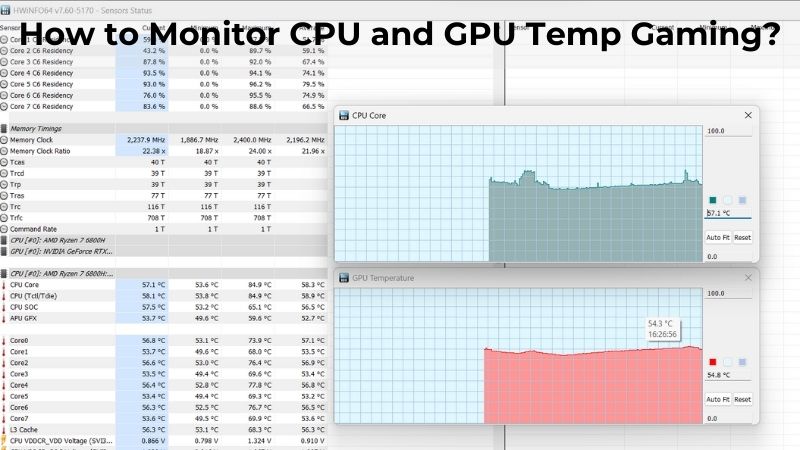
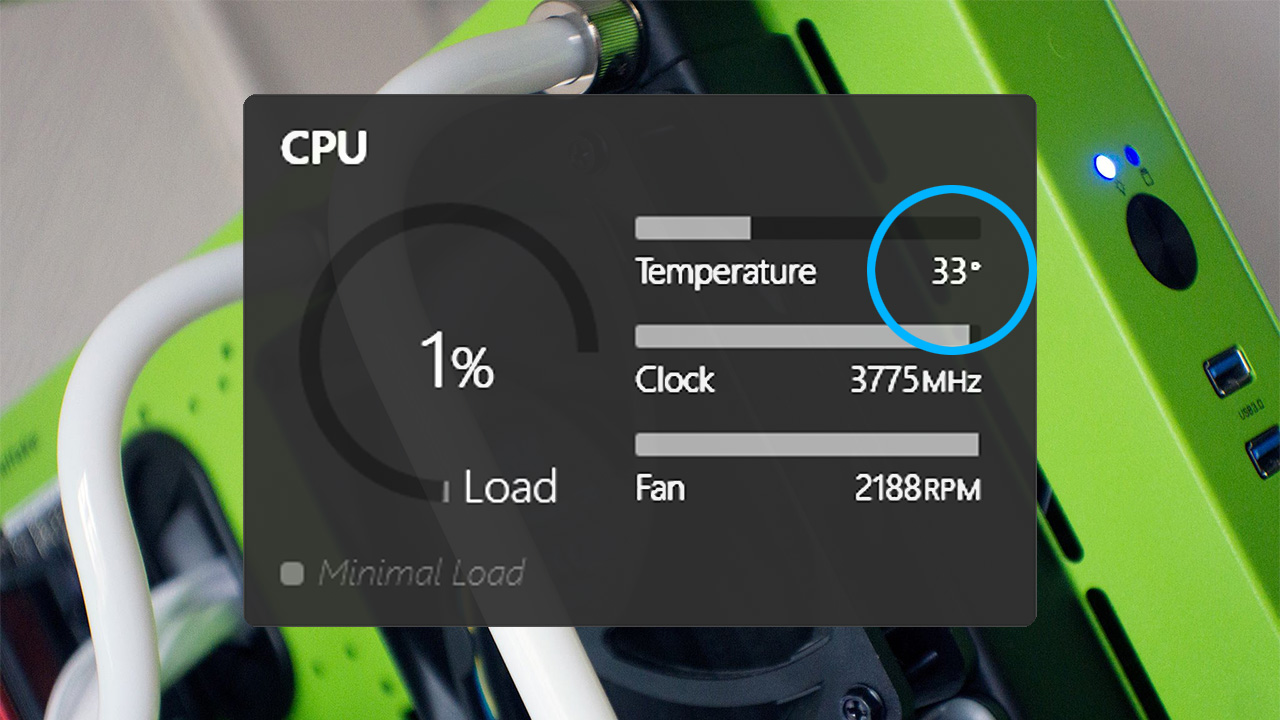
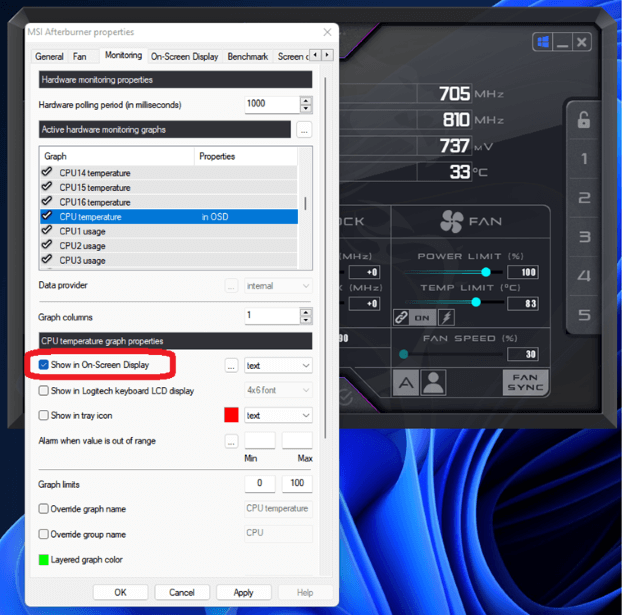
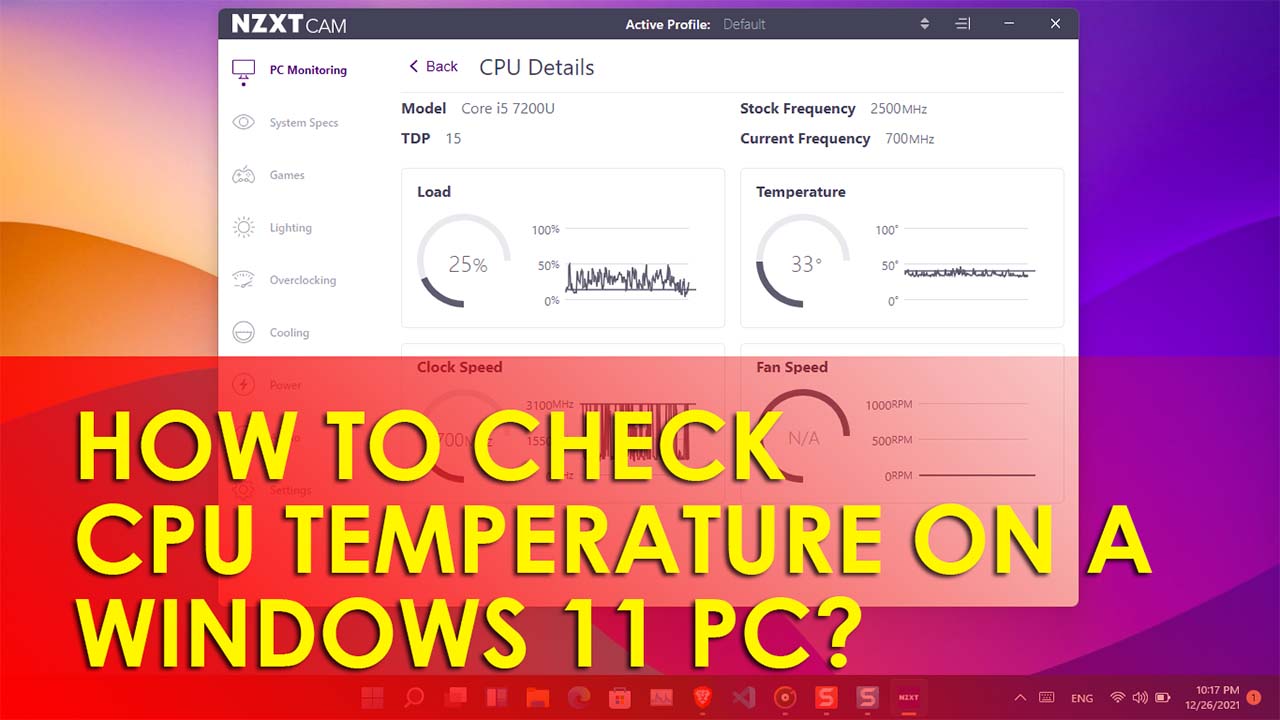
You can check your CPU temperature in-game using dedicated monitoring software with an overlay feature. Popular choices include MSI Afterburner, NZXT CAM, or HWMonitor. Install one of these utilities, enable its in-game overlay option, and configure it to display your CPU temperature directly on your screen without needing to alt-tab, providing real-time data.
Why is my CPU temperature so high when I'm only playing older games?
High CPU temps, even with older games, often suggest inadequate cooling or poor thermal paste. Dust buildup in your cooler or case fans significantly hinders heat dissipation. Ensure your CPU cooler is properly seated and its thermal paste is fresh. Verify your case airflow is optimized to prevent hot air from recirculating internally, improving overall thermal efficiency.
Does high CPU temp cause FPS drops and stuttering?
Yes, absolutely. When your CPU reaches critical temperatures, it activates thermal throttling as a protective measure. This process intentionally reduces the CPU's clock speed, directly leading to noticeable FPS drops, frustrating stuttering, and overall performance degradation in your games. Monitoring and managing temperatures are crucial to maintain consistent, high frame rates.
How often should I clean my PC to prevent high CPU temperatures?
For most gaming PCs, a thorough cleaning every 3 to 6 months is recommended to prevent excessive CPU temperatures. Regular dusting of CPU heatsinks, GPU fins, and case fans with compressed air removes accumulated grime. This routine maintenance ensures optimal airflow and efficient heat dissipation, significantly contributing to stable performance and hardware longevity during gaming sessions.
What are the best free software options to monitor CPU temperature?
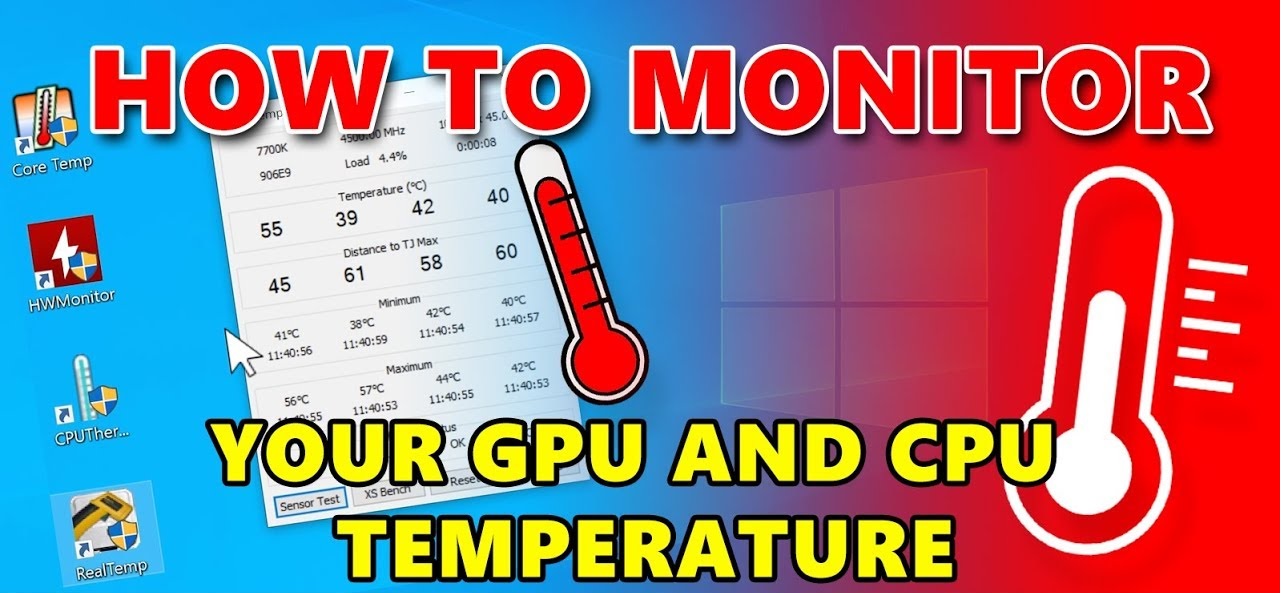
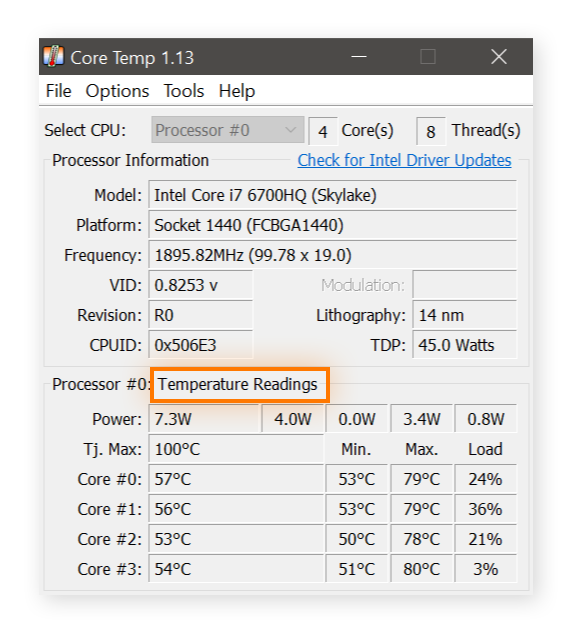
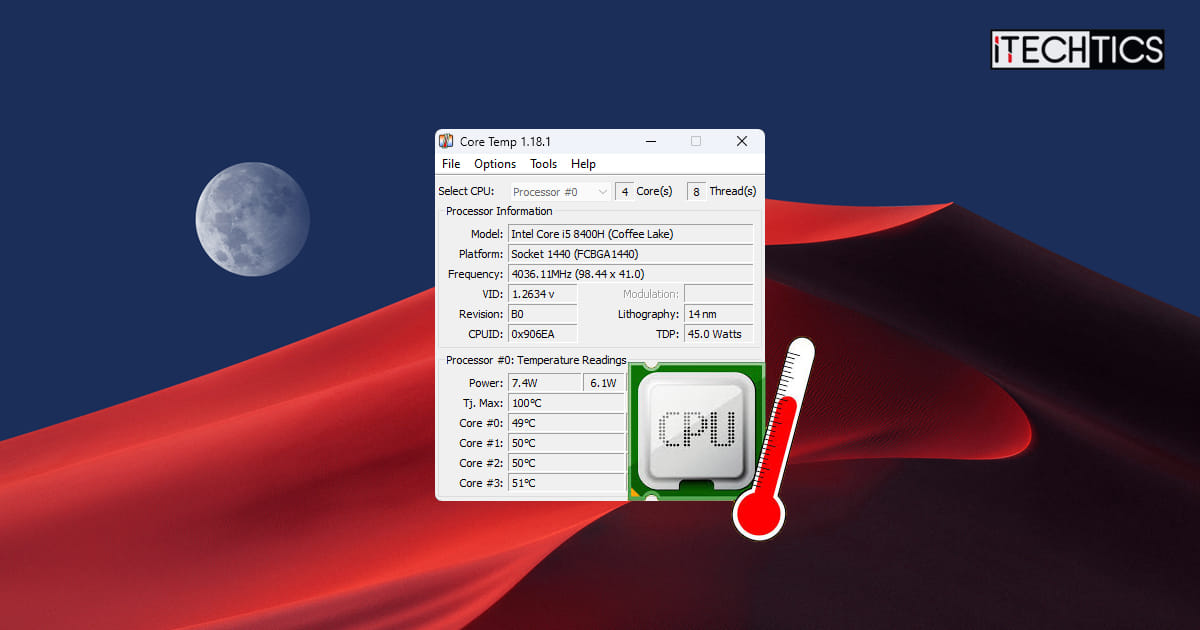
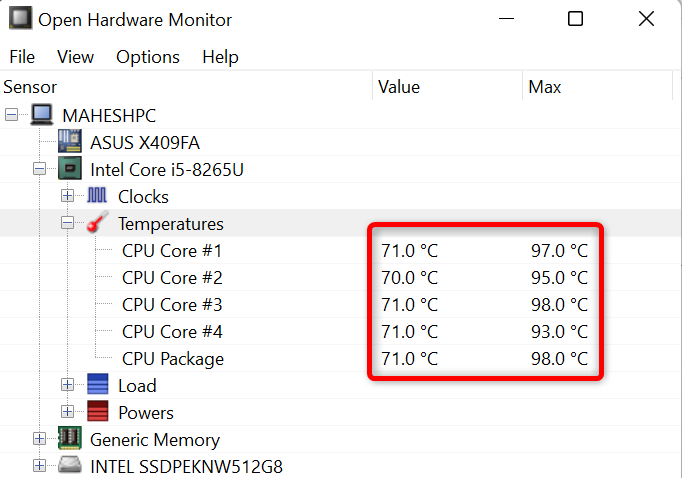
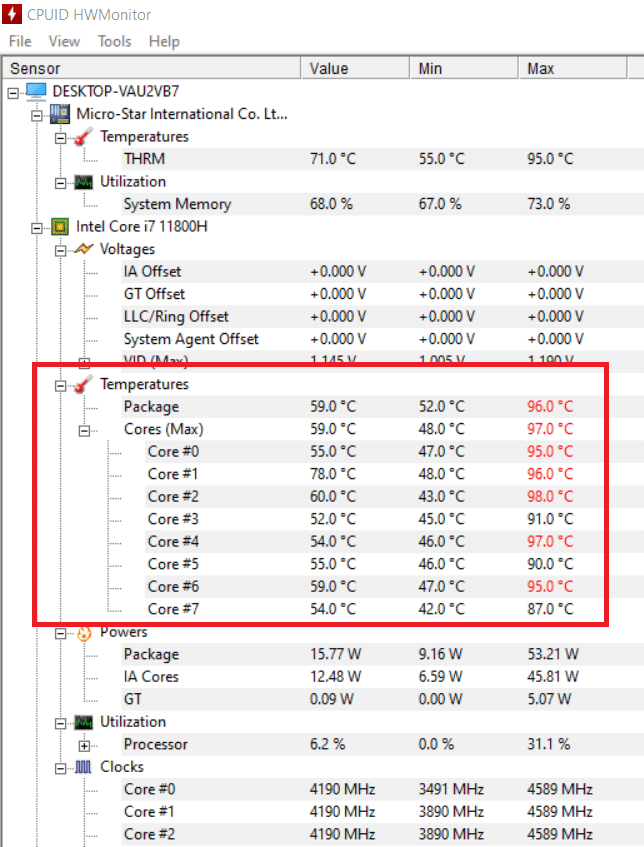
For reliable, free CPU temperature monitoring, Core Temp and HWMonitor are excellent choices. Core Temp offers detailed individual core temperatures in a lightweight package. HWMonitor provides a comprehensive overview of various system components, including CPU, GPU, and fan speeds. Both are easy to install and run discreetly in the background, providing crucial real-time data.
Can updating my CPU drivers improve temperature management?
While updating CPU drivers (or chipset drivers) primarily enhances compatibility and performance, it can indirectly aid temperature management. Optimized drivers ensure your CPU and motherboard communicate efficiently, potentially reducing unnecessary workload or power draw under certain conditions. This efficiency might result in slightly lower operating temperatures. However, direct cooling solutions like better fans or thermal paste offer more significant temperature improvements.
Still have questions? Dive deeper into PC optimization by exploring our guides on advanced cooling techniques and GPU temperature management. Your ultimate gaming setup awaits!
Hey fellow gamers, have you ever felt your PC radiating heat like a portable sun? You might be asking, 'Why is my gaming rig acting so sluggish and loud?' This common concern points to one critical factor: your CPU temperature. Keeping an eye on processor thermal health is incredibly important. It ensures consistent performance and the long-term well-being of your gaming setup. In 2026, games push hardware limits more than ever. Understanding how to check CPU temp when gaming is absolutely essential for every player. Let us dive into why those numbers matter. We will explore how you can easily keep your cool. Your in-game action might get incredibly heated.
When you are immersed in an intense gaming session, your CPU works incredibly hard to process complex game data. This constant heavy workload generates significant heat within your system's components. If this heat is not properly managed and dissipated, your CPU can reach critically high temperatures. High temperatures trigger a safety mechanism known as thermal throttling. This process automatically reduces your CPU's clock speed. It prevents damage while protecting your crucial hardware components. While throttling protects your hardware, it also causes severe FPS drops. You might experience frustrating lag and noticeable stuttering during gameplay. Regular temperature monitoring helps you proactively address potential cooling issues quickly.
Modern games like those releasing in late 2025 and early 2026 demand robust performance from your processor. Ignoring CPU temperatures can significantly shorten the lifespan of your expensive gaming components. Prolonged exposure to excessive heat degrades internal materials over time. This leads to component failure and costly replacements. Monitoring your CPU temperature is a simple habit. This practice safeguards your investment effectively. It ensures your gaming PC remains a reliable companion for years to come. Investing time in this knowledge pays dividends for serious gamers.
Essential Tools for Monitoring CPU Temperature
Fortunately, numerous excellent software tools are available to help you check your CPU temperature in real-time. These applications offer detailed insights into your system's thermal performance. Choosing the right tool depends on your preferences and technical comfort level. Many gamers prefer lightweight solutions that integrate seamlessly into their gaming experience. Others opt for more comprehensive diagnostics suites providing extensive data. Experiment with a few options to discover what works best for your specific setup and needs.
Recommended Software Solutions for Gamers
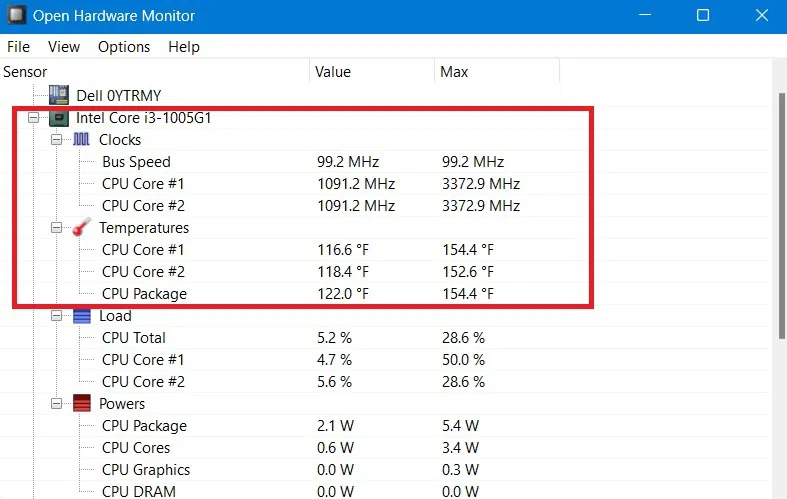
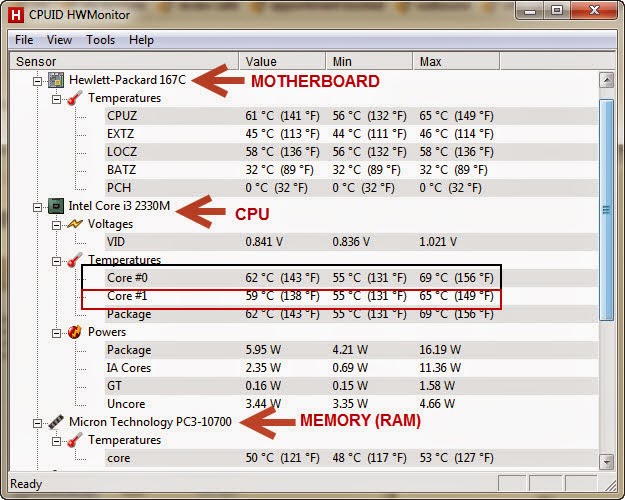
- HWMonitor: This popular and free utility provides a simple interface showing temperatures, voltages, and fan speeds. It is a fantastic option for beginners and experienced users alike. HWMonitor offers a clear overview without overwhelming details.
- NZXT CAM: Gamers often choose NZXT CAM for its sleek interface and comprehensive system monitoring features. It is great for monitoring CPU temperature, GPU usage, and FPS, all in one dashboard. CAM also allows for custom fan curves and lighting control.
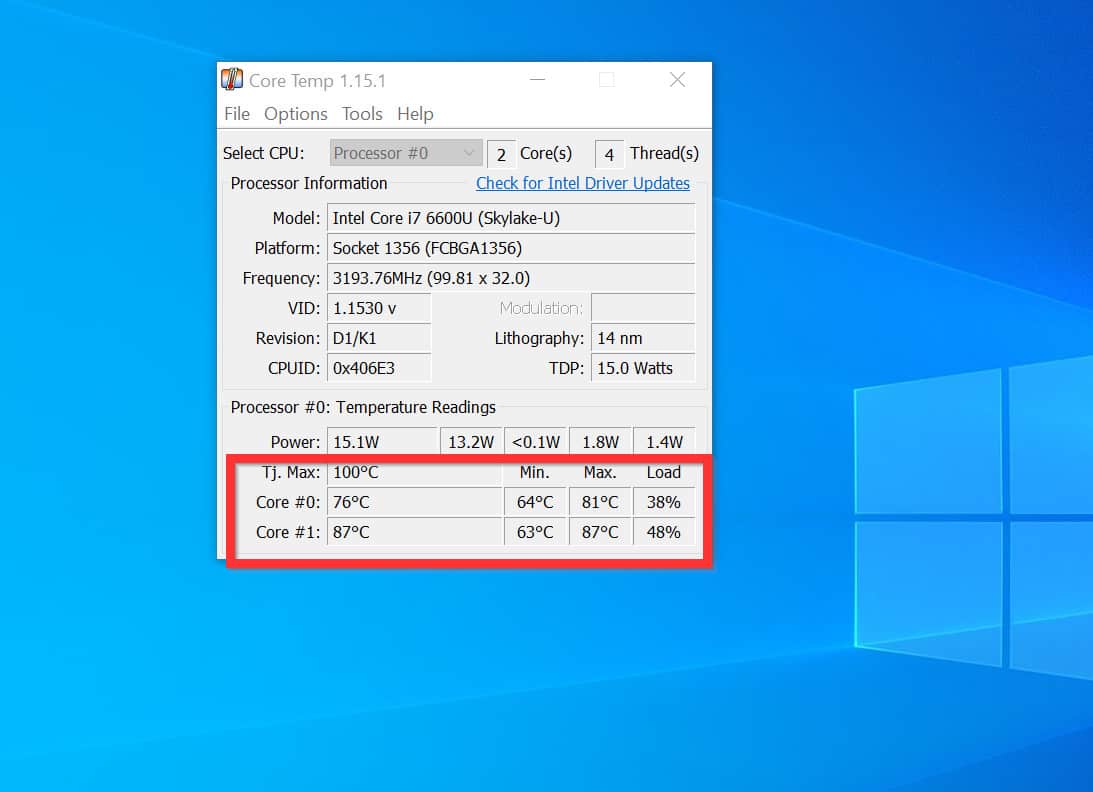
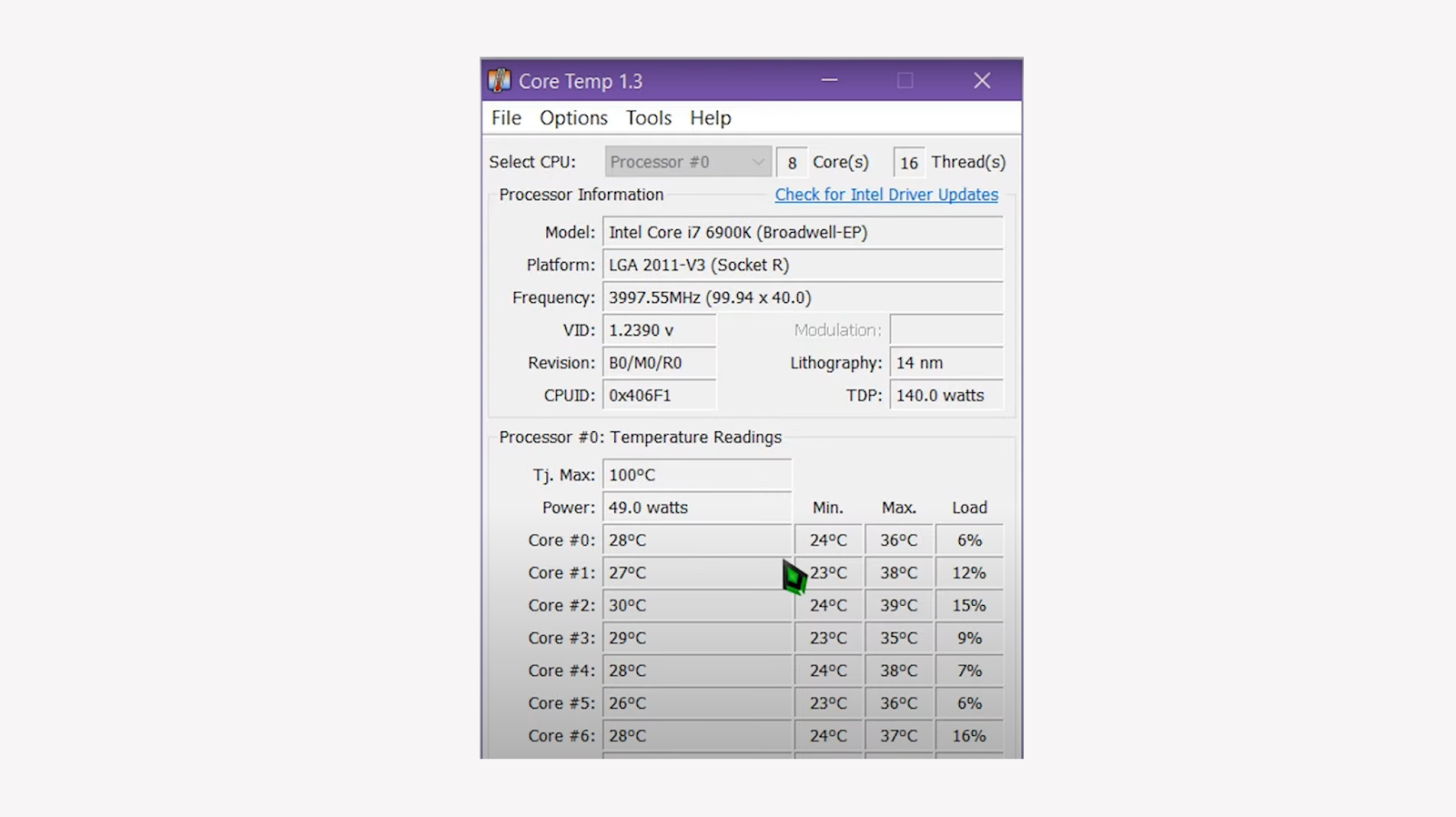
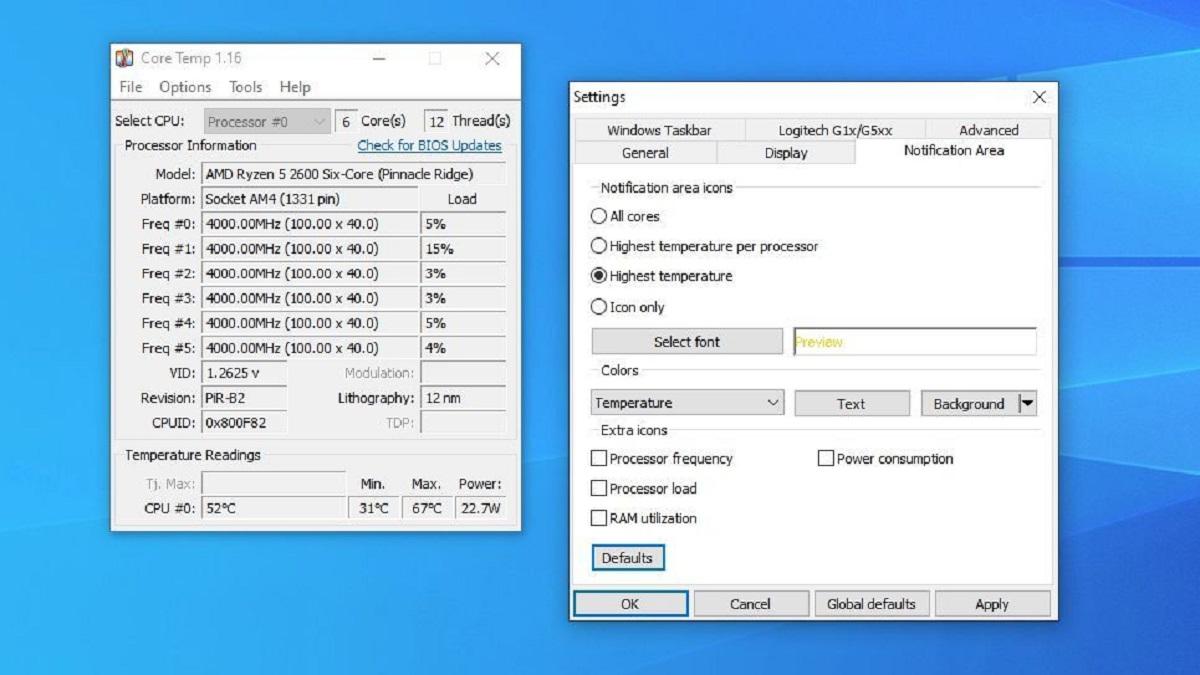
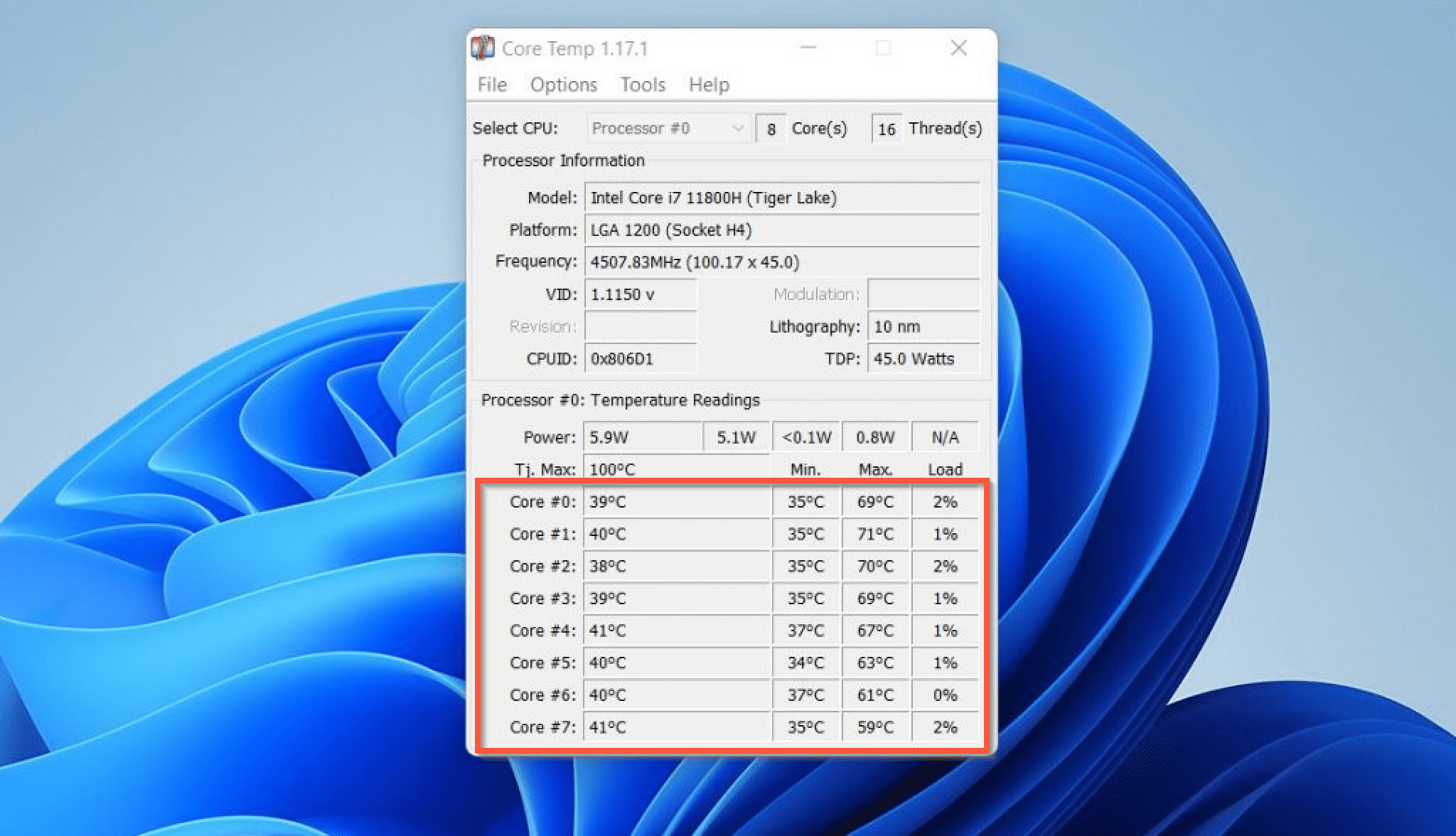
- Core Temp: A minimalist tool focusing specifically on CPU temperatures. Core Temp displays individual core temperatures which is very useful for detailed analysis. It runs quietly in the background without impacting performance significantly.
- MSI Afterburner: While primarily known for GPU overclocking and monitoring, Afterburner also provides robust CPU temperature overlays. This software is ideal for users who already use it for graphics card management. Its customizable overlay is perfect for in-game monitoring.
- Your Motherboard's Utility: Many motherboard manufacturers provide their own dedicated monitoring software. These utilities often integrate tightly with your specific hardware. They can offer unique insights and control over fan speeds. Check your motherboard manufacturer's website for available downloads.
Most of these tools offer an in-game overlay feature, which allows you to see your CPU temperature without tabbing out of your game. This convenience is incredibly useful for real-time adjustments and quick checks during intense moments. Always make sure your chosen software is up-to-date for accurate readings and compatibility. Outdated versions might provide incorrect data or stability issues. Keeping everything updated is a golden rule for PC gaming.
Now, let's get into the nitty-gritty with some common questions I hear from fellow gamers. I'm excited to share some insights that will really help you understand and master your CPU temperatures while gaming. You've totally got this, and together we'll make sure your rig stays cool and performs its best!
Beginner / Core Concepts
1. Q: What's considered a normal CPU temperature when I'm gaming? I'm always worried about frying my PC!
A: I totally get why this worries so many people; it's a common concern! Generally, when you're deep into a gaming session, a good target for your CPU temperature is anything below 75°C (167°F). Many modern CPUs can comfortably run up to 80-85°C (176-185°F) under heavy load, but consistently hitting those higher numbers might indicate your cooling system is struggling a bit. Think of it like a car's engine; it can handle high temps for a short sprint, but you wouldn't want it constantly redlining. Keeping it in the 60-75°C range is fantastic and means your system is happy and healthy. If you’re seeing spikes into the 90s, that’s a red flag you should definitely look into. You've got this! Try checking your temps after an hour of your favorite game.
2. Q: How do I actually see my CPU temperature while playing a game without constantly alt-tabbing?
A: This one used to trip me up too, constantly pausing the action isn't fun! The easiest way is to use an in-game overlay provided by monitoring software. Tools like MSI Afterburner (which also has a great CPU monitor), NZXT CAM, or even your motherboard's utility software often have this feature. You install the software, enable the overlay in its settings, and then you can customize what information appears on your screen while you're gaming. It usually pops up in a corner, showing your CPU temp, GPU temp, FPS, and more, all in real-time. It’s a game-changer for monitoring without interruption. You'll wonder how you ever gamed without it! Give MSI Afterburner a try, it’s a popular choice for a reason.
3. Q: Is high CPU temp really that bad, or is it just something picky PC builders worry about? My PC seems fine!
A: Ah, the 'it seems fine' trap – I've been there! While your PC might *seem* okay now, consistently high CPU temperatures are definitely not just for picky builders to fret over. It’s a real threat to your system’s longevity and performance. High temps lead to what's called 'thermal throttling,' where your CPU deliberately slows itself down to prevent damage. This causes those frustrating FPS drops, stutters, and lag you sometimes experience. Over time, prolonged exposure to excessive heat can actually degrade components, shortening the lifespan of your expensive CPU and motherboard. So, yes, it's genuinely bad, and proactive monitoring saves you headaches and money down the line. Keep an eye on it, your future self will thank you!
4. Q: What's the quickest, simplest free software I can download right now to check my CPU temp?
A: If you need something quick, simple, and absolutely free, I always point people towards Core Temp or HWMonitor. Both are incredibly lightweight, easy to install, and give you a straightforward readout of your CPU's core temperatures. Core Temp is fantastic for a focused view of just your CPU, showing each core’s temperature, while HWMonitor provides a broader overview, including GPU and other component temperatures. You literally download, install, and open it up, and boom, there are your numbers. They run quietly in the background, so they won't hog resources while you're gaming. It’s a brilliant first step to getting informed without any fuss. Try Core Temp today and get those crucial readings!
Intermediate / Practical & Production
5. Q: My CPU temps are spiking only during specific games. What could be causing that, and what should I check first?
A: That’s a super common scenario! If it’s game-specific, it often points to a few culprits. First, some games are just incredibly CPU-intensive – think open-world titles or complex strategy games with lots of AI. Second, your game’s graphical settings might be putting undue stress on your CPU, even if it seems like a GPU thing. What I'd check first is your CPU cooler’s mounting and thermal paste application. Over time, thermal paste can dry out, or the cooler might have shifted slightly. Also, check for dust buildup in your case and on your cooler’s fins. A clogged heatsink is an incredibly efficient thermal insulator, exactly what you don't want! A good dusting can work wonders. Finally, ensure your case fans are correctly configured for optimal airflow. You've got this, a little detective work goes a long way!
6. Q: I just installed a new CPU cooler, but my temps are still higher than I expected. Did I mess up the installation?
A: It's frustrating when new hardware doesn't immediately solve the problem, isn't it? Don't stress, it's often a common installation hiccup. The most frequent issue I see is incorrect thermal paste application or uneven mounting pressure. Did you apply too much, too little, or spread it poorly? A pea-sized dot in the center is usually ideal, and the cooler pressure spreads it out. Also, ensure all four (or more) mounting screws or clips are securely fastened and tightened evenly. An uneven mount can leave tiny air gaps, which are terrible for heat transfer. Sometimes, people also forget to remove the plastic film from the cooler's base – a classic! Double-check those steps carefully; a fresh application of paste and a re-mount often fixes it. You’ll nail it on the second try!
7. Q: How does my case's airflow configuration impact CPU temperatures, and what's an optimal setup for gaming?
A: Case airflow is HUGE for CPU temps; it’s like the lungs of your PC! A poorly ventilated case traps hot air, making your CPU struggle. An optimal setup usually involves a 'positive pressure' system, or at least a balanced one. This means you have more intake fans (pushing cool air into the case) than exhaust fans (pulling hot air out), or an equal number. Common good practices are intake fans at the front and bottom, blowing cool air over your components, and exhaust fans at the rear and top, expelling the hot air. This creates a consistent flow, preventing heat pockets. Think about the path the air takes: cool air in, across components, hot air out. A well-designed airflow path ensures fresh, cool air reaches your CPU cooler. Try rearranging your fans for better flow, it makes a real difference!
8. Q: My gaming laptop runs super hot. How do I check its CPU temp, and what are my options for cooling it down?
A: Gaming laptops are notorious for running hot – they pack powerful components into a small space, so it's a constant battle with physics! You can check CPU temps using the same software as desktops: HWMonitor, Core Temp, or NZXT CAM work perfectly. For cooling, your options are a bit more limited but still effective. First, elevate it using a laptop stand; this improves airflow underneath. Second, invest in a good quality laptop cooling pad with powerful fans – it’s not a magic bullet, but it helps. Third, regularly clean out the vents and fans with compressed air, as dust buildup is a massive culprit in laptops. Finally, consider undervolting your CPU, which can reduce heat without significant performance loss (though this is a bit more advanced). You're already ahead by monitoring; now optimize!
9. Q: What's the difference between CPU package temperature and individual core temperatures, and which one should I really be watching?
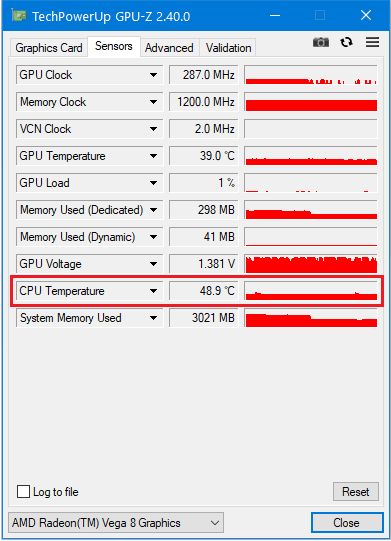
A: This is a great, nuanced question, and it's easy to get confused here! 'CPU Package' temperature is typically an average or the highest reading across the entire CPU chip, including internal sensors and integrated components like the iGPU (if present). Individual 'Core' temperatures, as the name suggests, show the temperature of each separate processing core. For general monitoring, the CPU Package temperature is a perfectly good indicator of your chip’s overall thermal health. However, if you're troubleshooting an issue or really trying to optimize, looking at individual core temps can reveal if one specific core is running hotter, perhaps due to uneven thermal paste application or a defect. For everyday gaming, keep an eye on the CPU Package temp; it gives you the holistic view you need. You're diving deep, that's awesome!
10. Q: Can an old or faulty power supply (PSU) somehow affect my CPU's temperature readings or actual heat output?
A: That's an insightful question and, yes, a faulty or underpowered PSU *can* indirectly influence your CPU temperatures, though it's not a direct heat source in the same way. An old or failing PSU might deliver unstable voltage to your components, causing your CPU to work harder to maintain stable operations, thus generating more heat. More critically, if your PSU isn't providing consistent power, other components like your case fans or CPU cooler fan might not be spinning at their optimal speeds, leading to reduced cooling efficiency. While it’s not the first thing I’d check for high CPU temps, if you've ruled out all the usual suspects (cooler, paste, airflow), a PSU health check is a valid next step, especially if your system is unstable or crashing. It's all connected in there!
Advanced / Research & Frontier 2026
11. Q: What's the deal with 'thermal velocity boost' or similar CPU features in 2026? How do they affect temp monitoring and performance?
A: Ah, you're talking about the cutting edge! In 2026, features like Intel's Thermal Velocity Boost (TVB) or AMD's Precision Boost Overdrive (PBO) are more sophisticated than ever. Essentially, these technologies allow your CPU to opportunistically boost to higher clock speeds *if* thermal headroom and power delivery allow it. This means your CPU is constantly pushing performance limits, but it’s also highly dependent on staying cool. When monitoring, you might see more dynamic temperature fluctuations as the CPU boosts then backs off based on temperature thresholds. It's a balancing act: more efficient cooling means your CPU can sustain higher boosts for longer, leading to better gaming FPS. Understanding this helps you appreciate why good cooling is paramount for unlocking your CPU's full potential with these advanced features. It’s all about giving your chip the freedom to perform!
12. Q: How can AI-driven dynamic cooling systems, expected in 2026, change how we monitor and manage CPU temps?
A: This is where things get really exciting for 2026! We're seeing more and more AI-driven dynamic cooling systems emerge, especially in higher-end custom builds and even some OEM systems. Instead of static fan curves, these systems use AI models to predict thermal loads based on current game activity, application usage, and even ambient room temperature. They can then proactively adjust fan speeds and pump speeds (for liquid cooling) to maintain optimal temperatures, often *before* significant temperature spikes occur. This will shift our monitoring from reactive 'what's the temp now?' to more of a 'is the AI doing its job?' oversight. You'd primarily monitor the system's effectiveness and intervene only if the AI isn't keeping up. It's like having a dedicated thermal engineer inside your PC! This will be a game-changer for set-and-forget optimization.
13. Q: I'm considering delidding my CPU for better temps. What are the 2026 considerations, risks, and potential benefits?
A: Delidding – that's a serious move, and definitely not for the faint of heart! In 2026, delidding still offers significant thermal benefits, particularly for older high-end CPUs or those with notoriously poor stock thermal interface material (TIM) under the integrated heat spreader (IHS). By replacing the manufacturer's TIM with liquid metal, you can often see 10-20°C drops in peak temperatures. However, the risks are substantial: you're voiding your warranty, and there's a real chance of damaging your CPU permanently if done incorrectly (e.g., shorting components with liquid metal). Newer CPUs often have soldered IHS, making delidding much more difficult and less beneficial. Before you even think about it, ensure you've exhausted *all* other cooling options. It's a high-reward, high-risk endeavor best left to experienced enthusiasts. Proceed with extreme caution and research thoroughly!
14. Q: What are the future trends for CPU cooling technologies beyond traditional air and AIO liquid cooling by 2026-2027?
A: This is a fascinating area, and 2026-2027 is really going to push boundaries! Beyond the established air and AIO liquid cooling, we're seeing more practical advancements in direct-to-die cooling solutions, where the cooler makes direct contact with the CPU die itself, bypassing the IHS. Vapor chamber technology is also becoming more prevalent, offering superior heat spreading in thinner designs, moving beyond just GPUs. Immersion cooling (submerging components in dielectric fluid) is still mostly for data centers but is gaining traction in extreme enthusiast builds. Furthermore, thermoelectric coolers (TEC/Peltier) are being integrated more cleverly, offering 'sub-ambient' cooling (below room temperature) for specific hotspots, though power consumption and condensation remain challenges. Expect hybrid solutions combining these for ultimate performance. The future of cooling is exciting and will directly enable even more powerful chips!
15. Q: How do different CPU architectures (e.g., big.LITTLE, chiplet designs) influence temperature management compared to monolithic dies?
A: This is a fantastic advanced question, showing you're really thinking about the underlying tech! Modern CPU architectures, like Intel's hybrid big.LITTLE approach or AMD's chiplet designs, significantly impact temperature management. With big.LITTLE, you have a mix of high-performance (P-cores) and high-efficiency (E-cores) cores. The P-cores will naturally generate more heat under load, but the E-cores handle background tasks efficiently, theoretically reducing overall heat *when not gaming*. Chiplet designs (multiple smaller dies on a single package) also present unique challenges; heat generation might be more localized, and the interconnects between chiplets can also generate heat. Effective cooling requires specific attention to these localized hotspots. It's no longer just about cooling one big block but managing thermal gradients across a more complex, segmented processor. This requires smarter cooler designs and thermal paste applications.
Quick 2026 Human-Friendly Cheat-Sheet for This Topic
- Always keep an eye on your CPU temps; 60-75°C is golden while gaming.
- Grab a free tool like Core Temp or HWMonitor to get started right away.
- Use an in-game overlay from MSI Afterburner or NZXT CAM for real-time checks without pausing.
- Dust out your PC regularly, especially your CPU cooler and case fans, it makes a huge difference!
- Ensure your case has good airflow with a balanced intake and exhaust fan setup.
- Don't forget to check your thermal paste every couple of years; it does dry out!
- For gaming laptops, a cooling pad and clean vents are your best friends.
- Remember, keeping your CPU cool means better FPS and a longer life for your gaming rig!
Real time CPU temperature monitoring during gameplay is vital for system health. Understanding safe thermal limits prevents performance issues like FPS drops and stuttering. Utilizing specialized software provides accurate temperature readings. Regular checks ensure hardware longevity and optimal gaming performance. Proactive cooling solutions are key for intense gaming sessions. Identify and mitigate overheating risks for a smoother experience.
35

How To Check Cpu Temp While Gaming . 3 Ways To Monitor CPU Temperature WikiHow Aid1468593 V4 728px Monitor CPU Temperature Step 6 Version 3 . How To Check CPU Temperature While Gaming 4 Steps Check CPU Temperature While Gaming1 1 . How To Check CPU And Gpu Temp Robots Net How To Monitor Cpu Temp While Gaming 1690359635 . How To Monitor CPU Temp While Gaming Robots Net How To See Your Cpu Temp 1690368691

How To Check CPU Temp And Manage Heat For Peak Gaming Performance Eneba Image 28 1024x695 . How To Check Cpu Temperature On Hp Laptop Image 581 . How To Check Cpu And GPU Temp Robots Net How To Check Cpu Temp In Task Manager 1690363693 . How To Check CPU Temp And Manage Heat For Peak Gaming Performance Eneba Header How To Check Cpu Temp 1 . How To Check Your Cpu Temperature Windows 11
How To Check CPU Temp And Manage Heat For Peak Gaming Performance Eneba Image 30 . How To Check CPU Temperature On A Windows PC Img 01 . How To Monitor And Check CPU Temperature On Windows How To Monitor And Check CPU Temperature On Windows . How To Check CPU Temp In Windows 11 Task Manager Gaming No BIOS How To Check Cpu Temp Windows 11. USA Tech Reviews Guides How To Latest Trends How To Monitor CPU And GPU Temp Gaming 1
How To Check CPU Temperature A Practical Guide For Windows MacOS How To Check CPU. Temperature Cpu How To Check Cpu Temperature 3 . How To Monitor CPU Temp While Gaming Robots Net How To Monitor Cpu Temperature 1698889523 . How To Check Cpu Temp Image 34 2048x1176 . How To Check CPU Temp On Windows 11 Windows Central


Gaming Laptop Cpu Temperature 90 At Joseph Cornwall Blog Check CPU Temperature While Gaming5 . How To Check Your CPU Temperature On Windows 11 9 Open Hardware Monitor Cpu Temp . Mostrar La Temperatura De La CPU As De F Cil Practical Tips . Temperature Cpu Image 570 1068x906 . Gaming Laptop Cpu Temperature 90 At Joseph Cornwall Blog



How To Check CPU Temp Windows 7 Robots Net How To Check Cpu Temp On Windows 11 1690363814 . Cara Mudah Mengecek Performa CPU Untuk Pemula Check CPU Speed Step 18 Version 4 . How To Check Cpu Temperature In Windows 11 How To Check CPU Temperature In Windows 11 . Good Gaming Laptop Cpu Temperature At Andy Summer Blog . How To See CPU Usage On Windows 10 How To Check Cpu Temp In Task Manager



Everything About HOW TO SEE CPU AND GPU TEMP WHILE GAMING Core Performance A Person Playing A Video Game In A Computer . Check CPU Temperature In Windows 10 And 11 Sensors . Temperature Cpu How To Check Your CPU Temperature In Windows 10 11 Hwmonitor . Pc Cpu And Gpu Temperature Monitor At JENENGE Blog CPU Temperature Win Open Hardware Monitor CPU Shown . Windows 11 How To See Cpu Temperature